The GoLand Eino visual orchestration plugin lets you compose Graphs by dragging components and generates code. Import/export are supported.
First Look
Orchestration Concepts
Graph
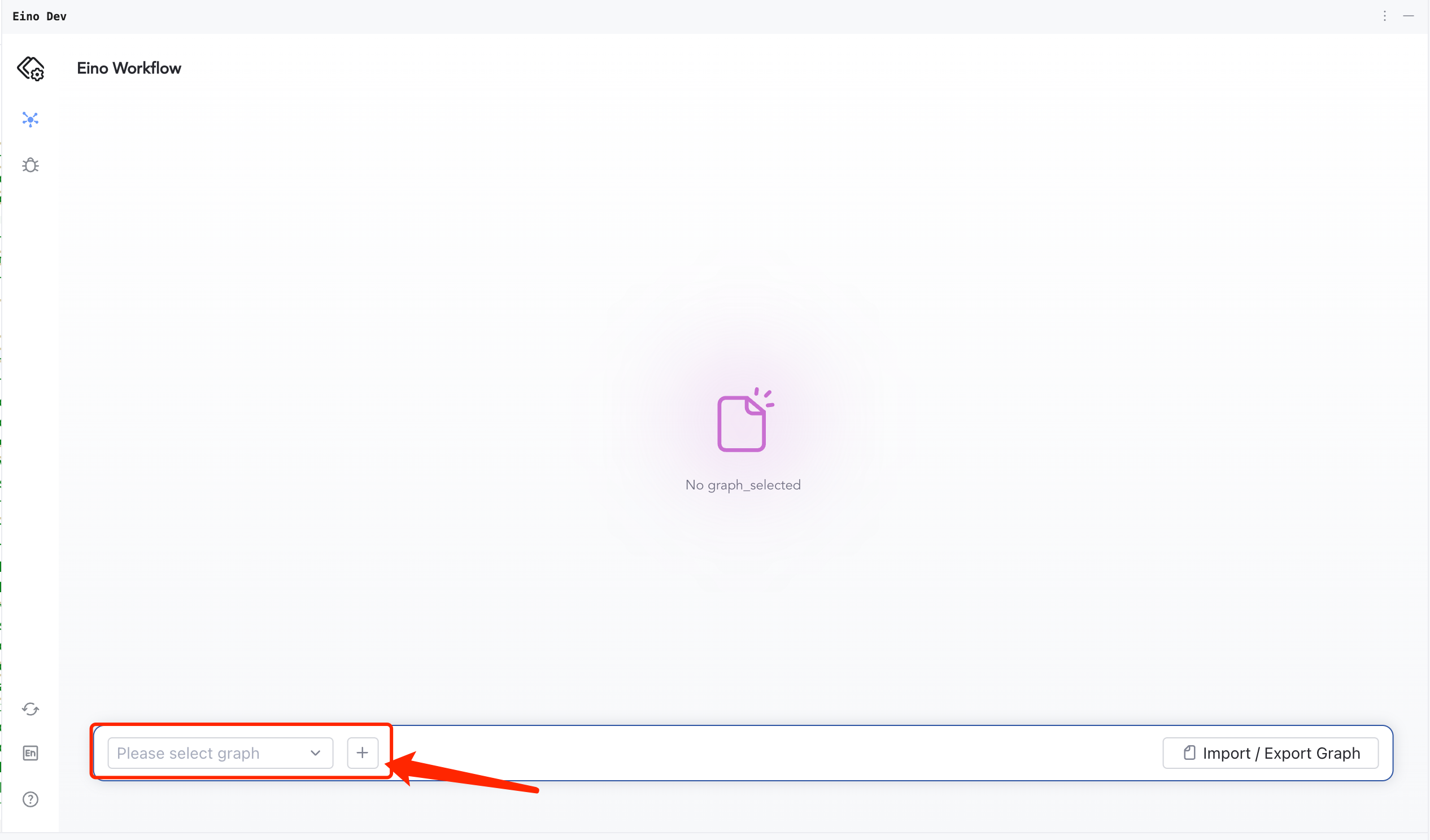
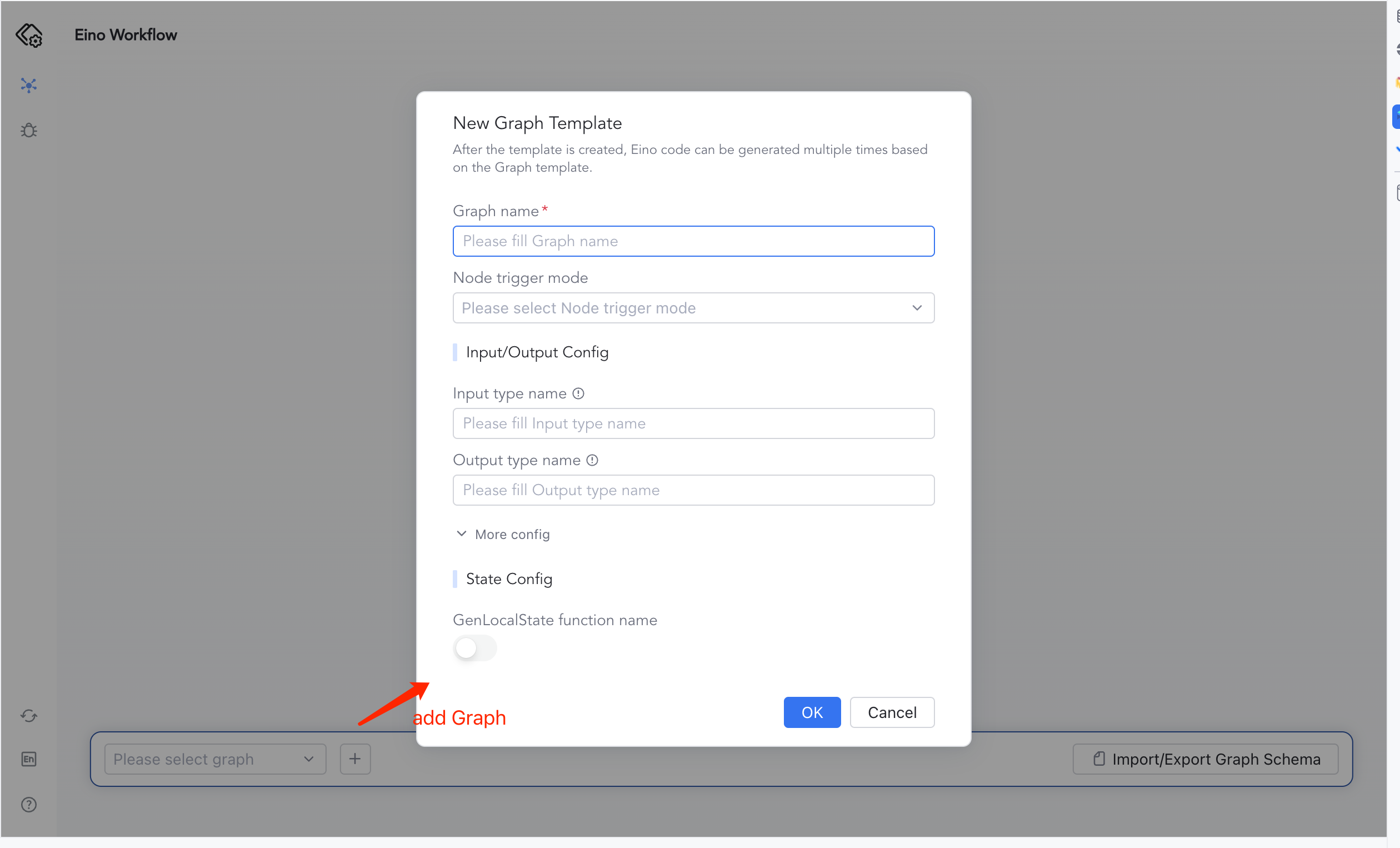
Matches Eino’s Graph concept. Add a Graph from the plugin UI.
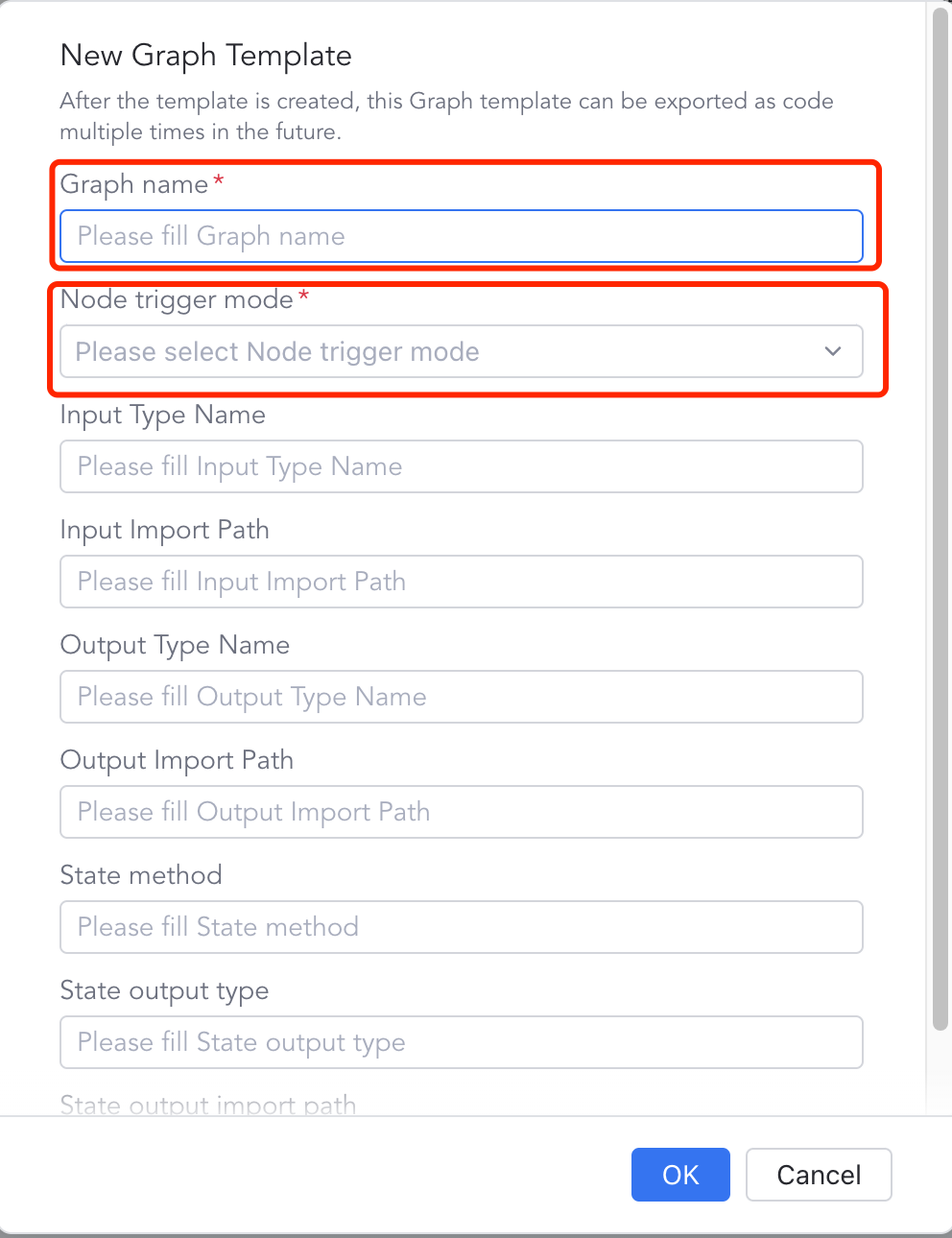
Fill the creation dialog to generate a Graph object.
Node
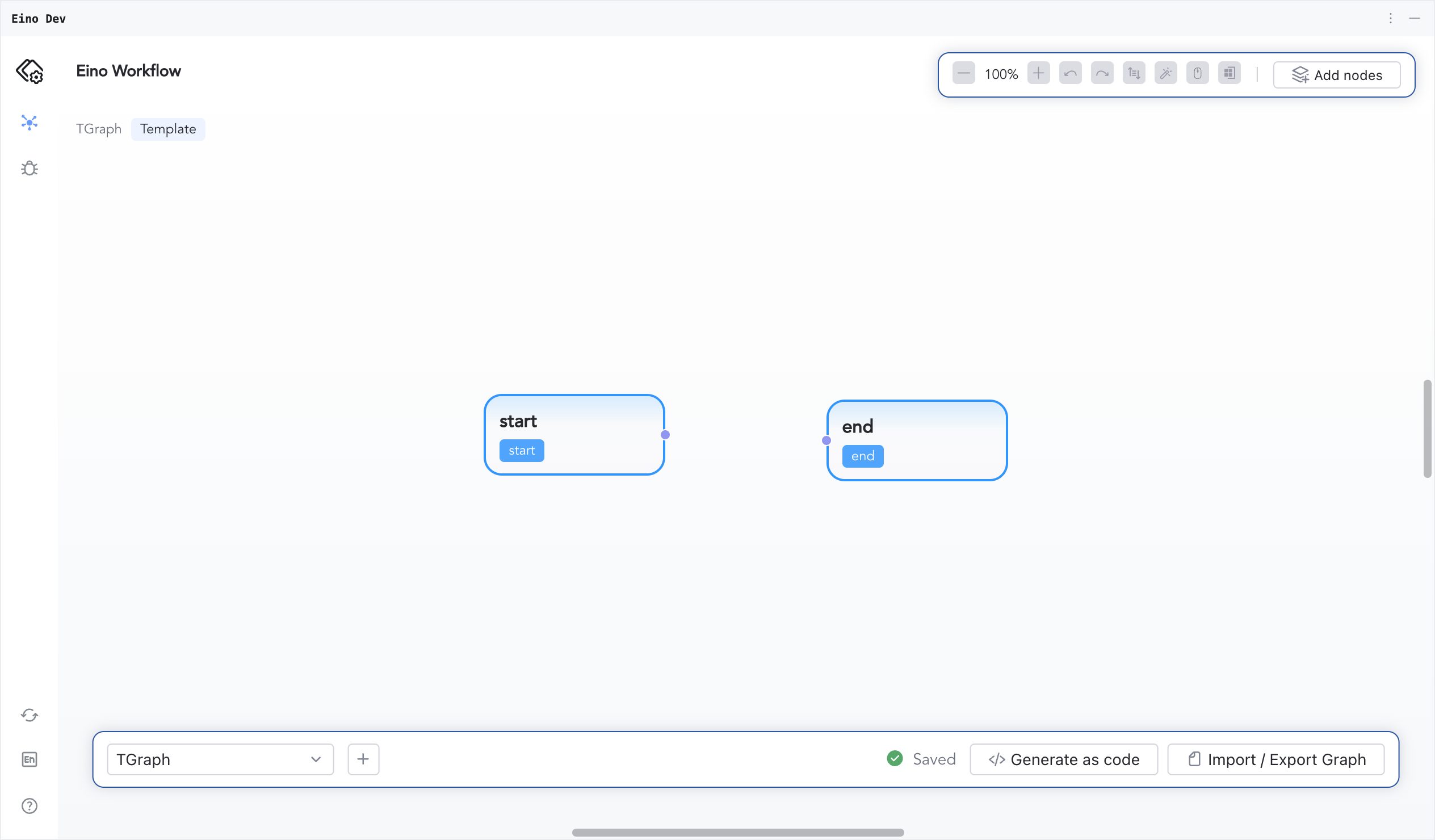
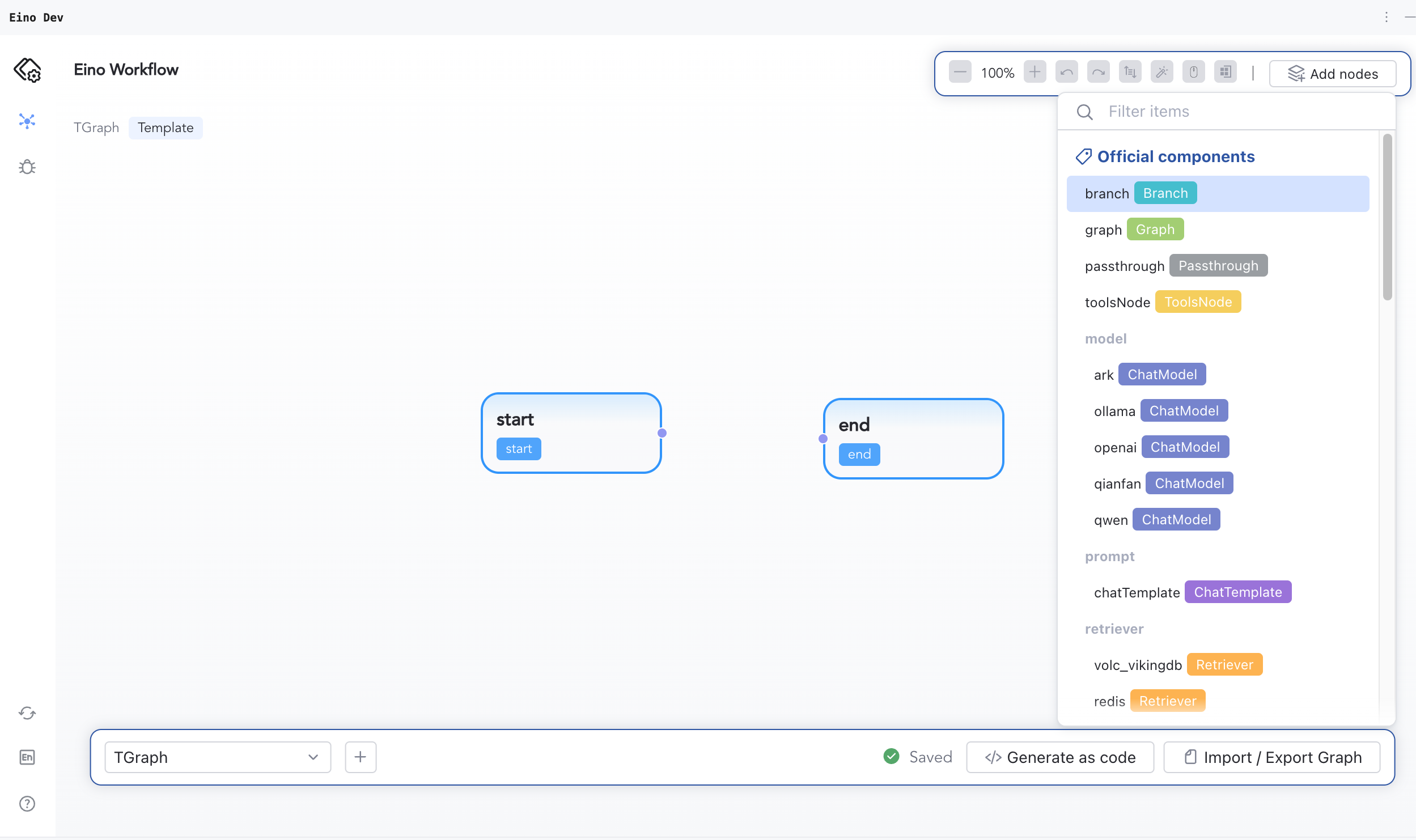
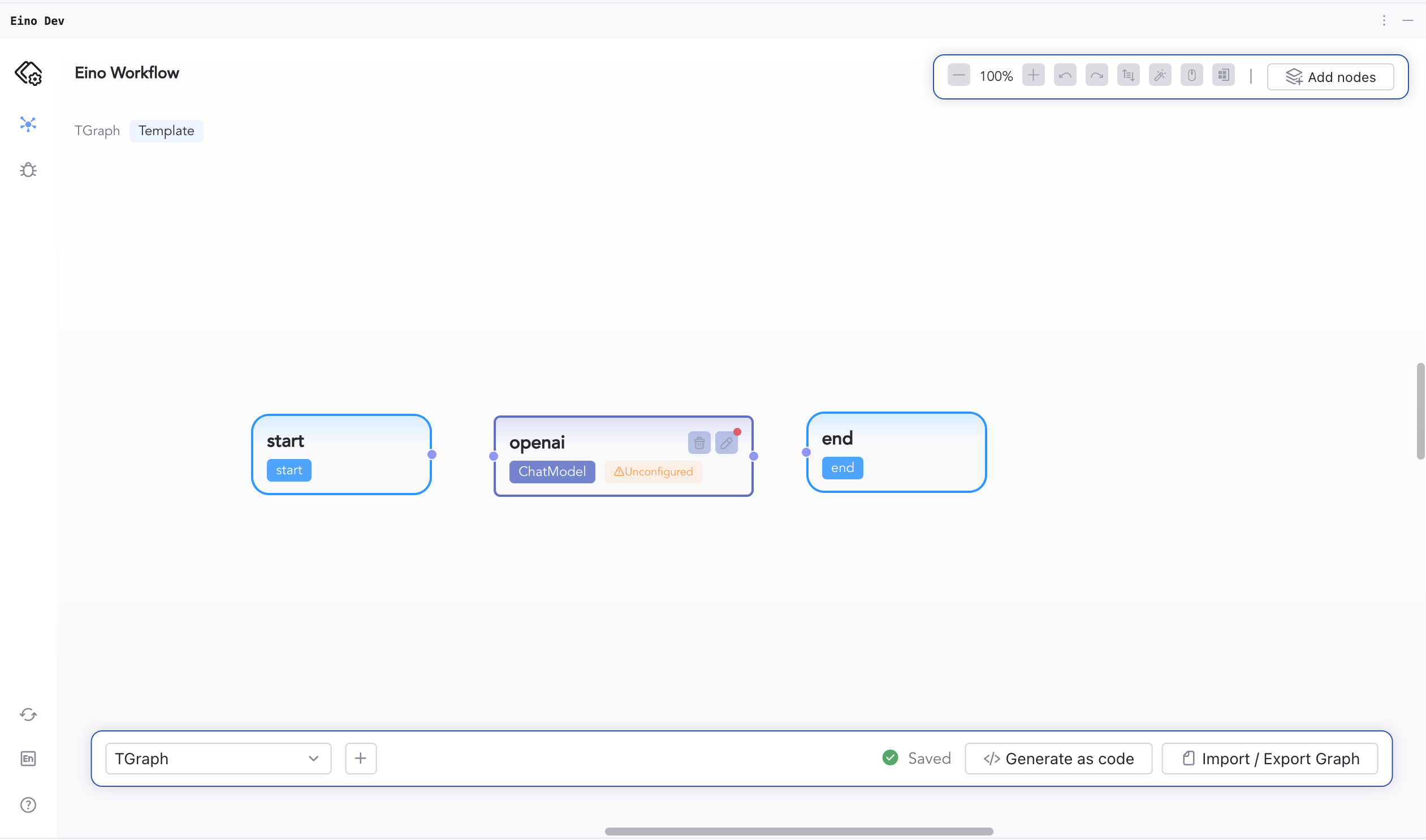
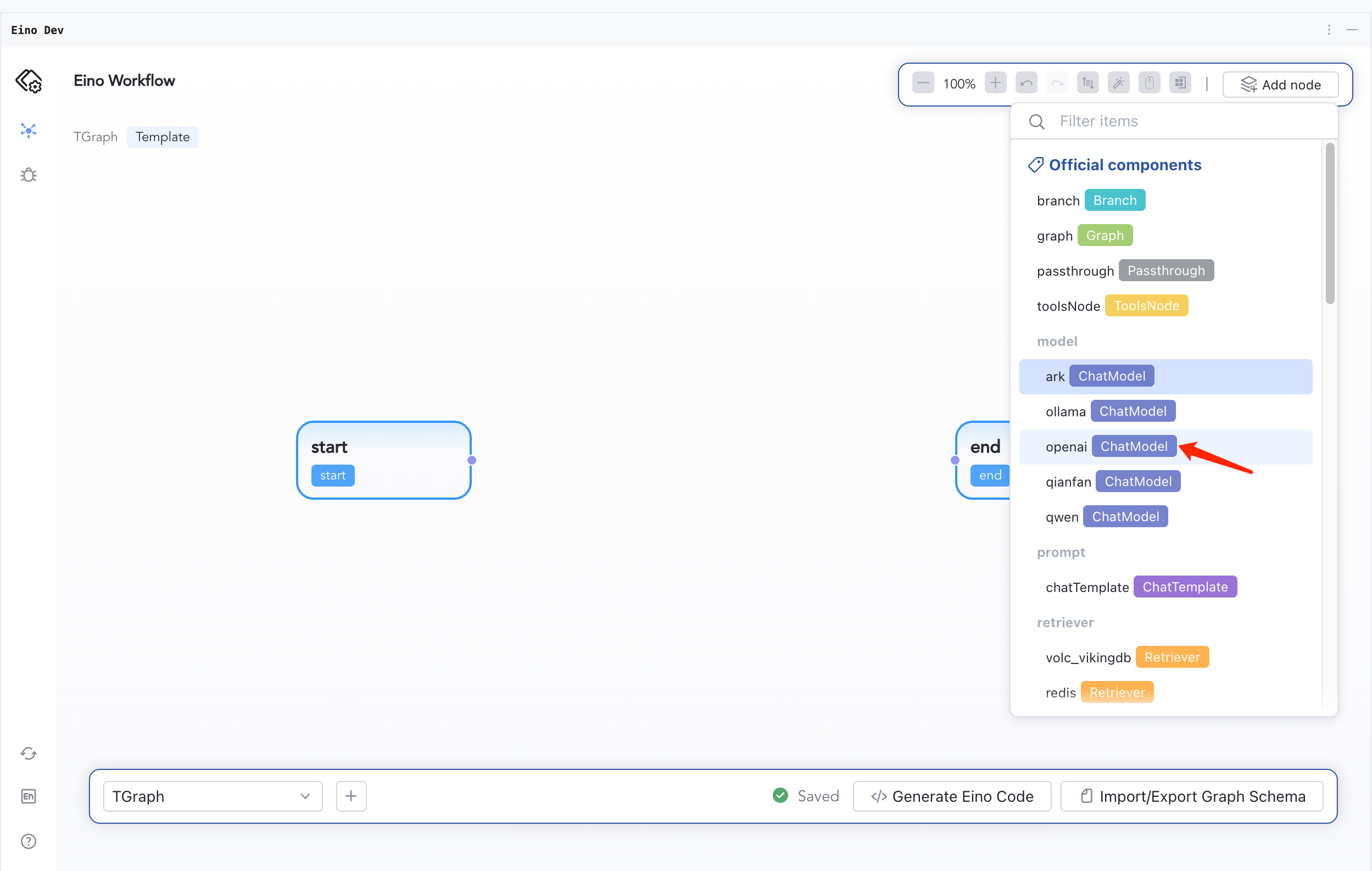
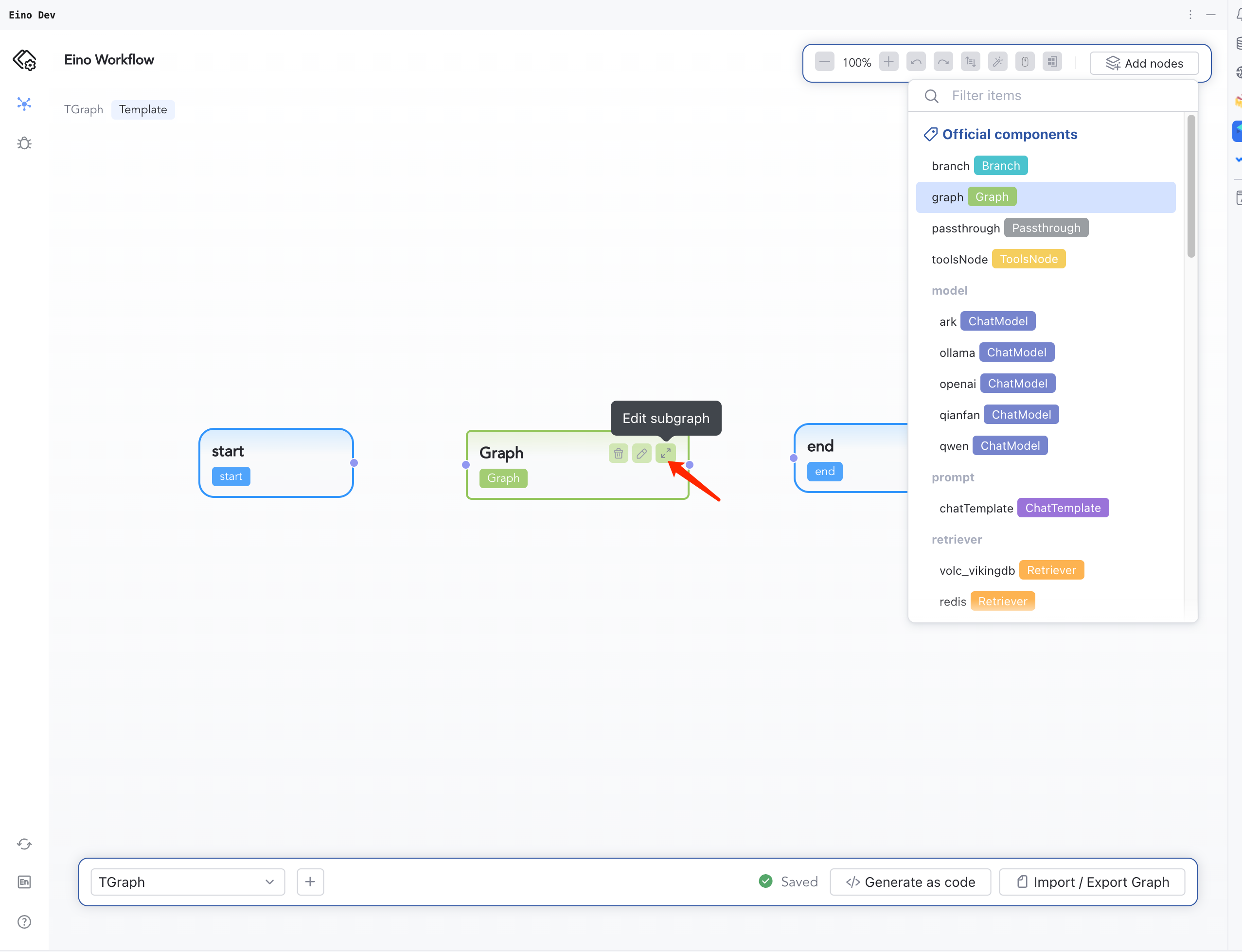
Matches Eino’s Node concept. After creating a Graph, click “AddNodes” to add different node types onto the canvas.
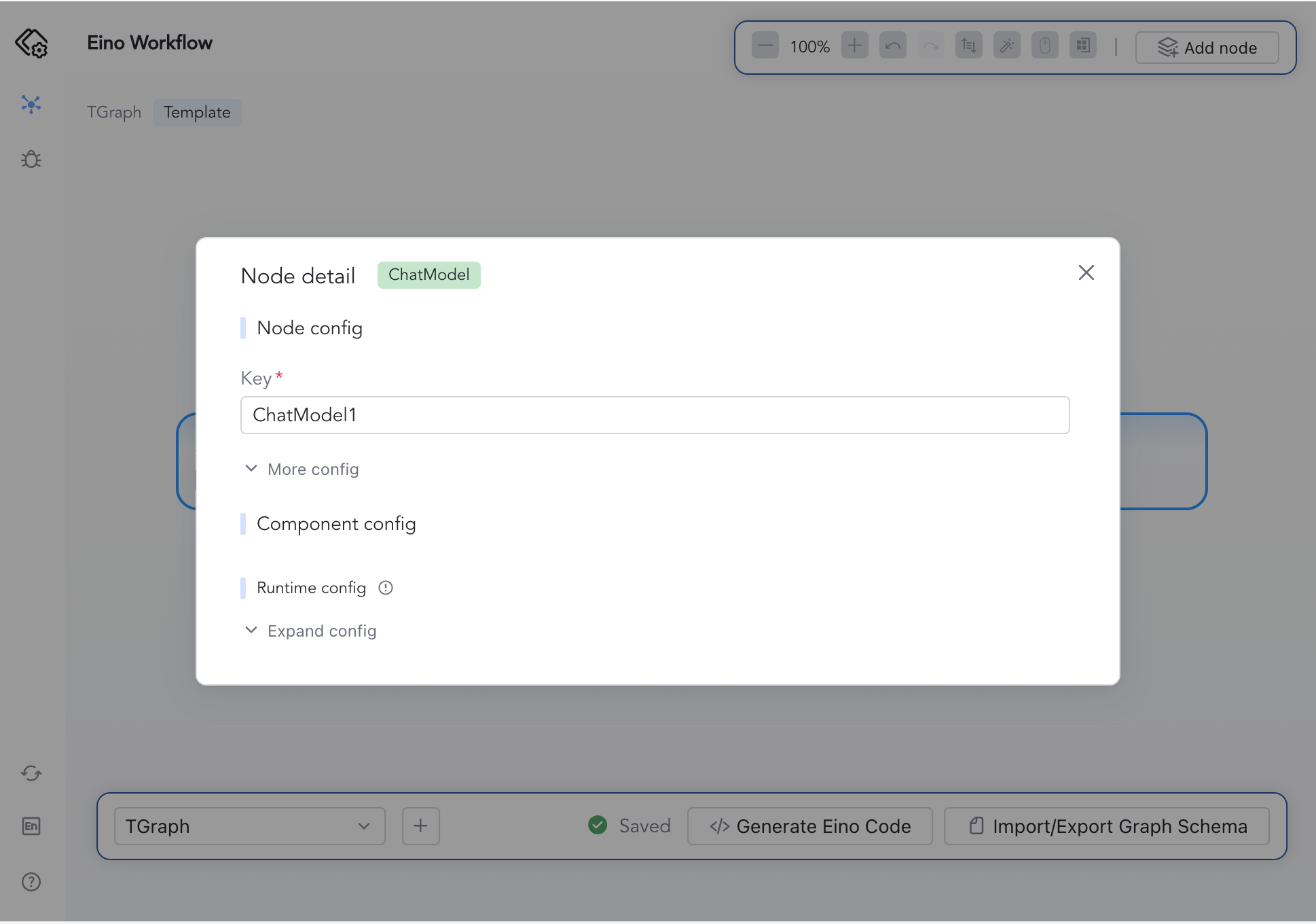
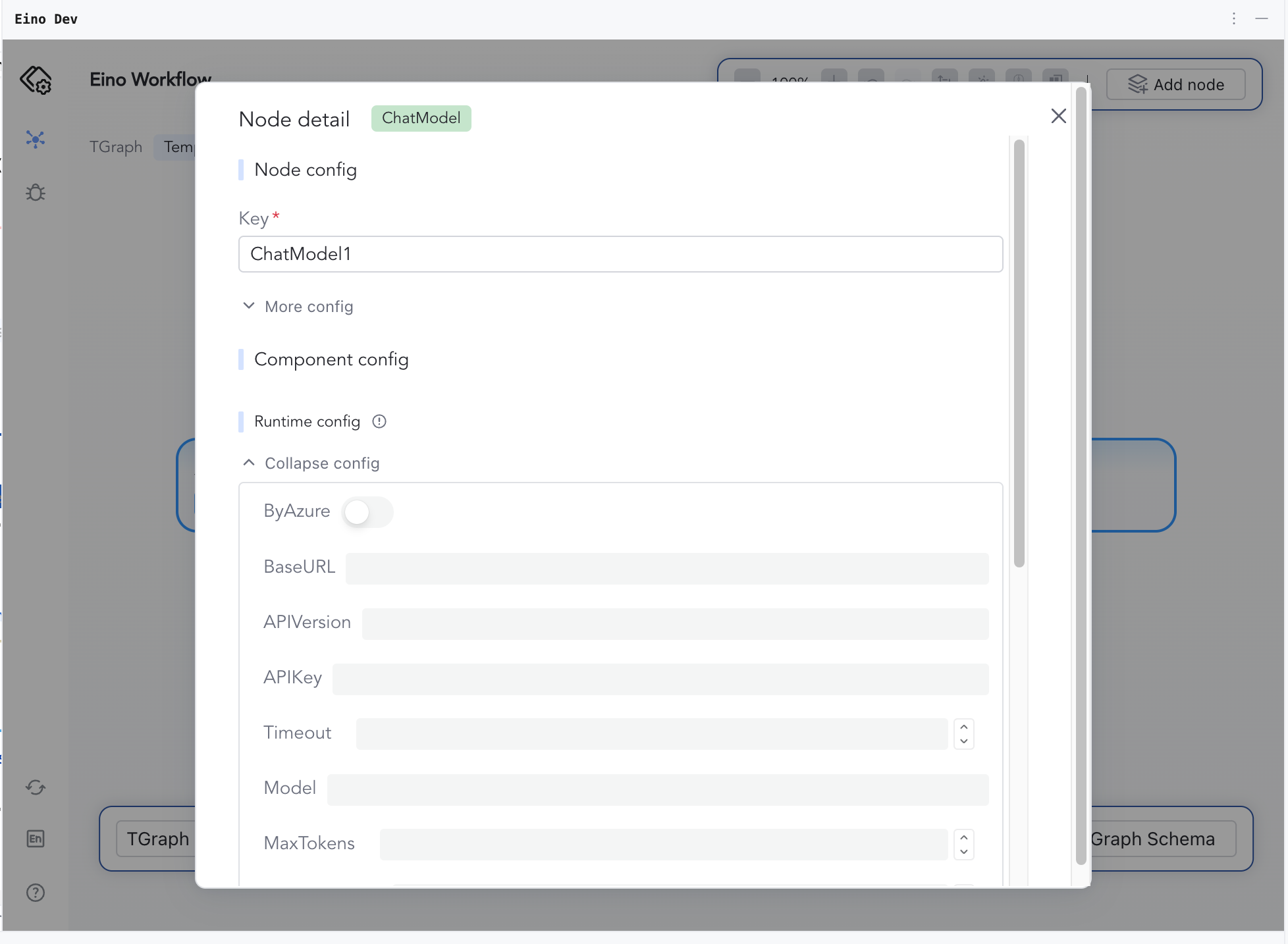
Node keys are auto-filled; expand “More config” for optional settings.
Component
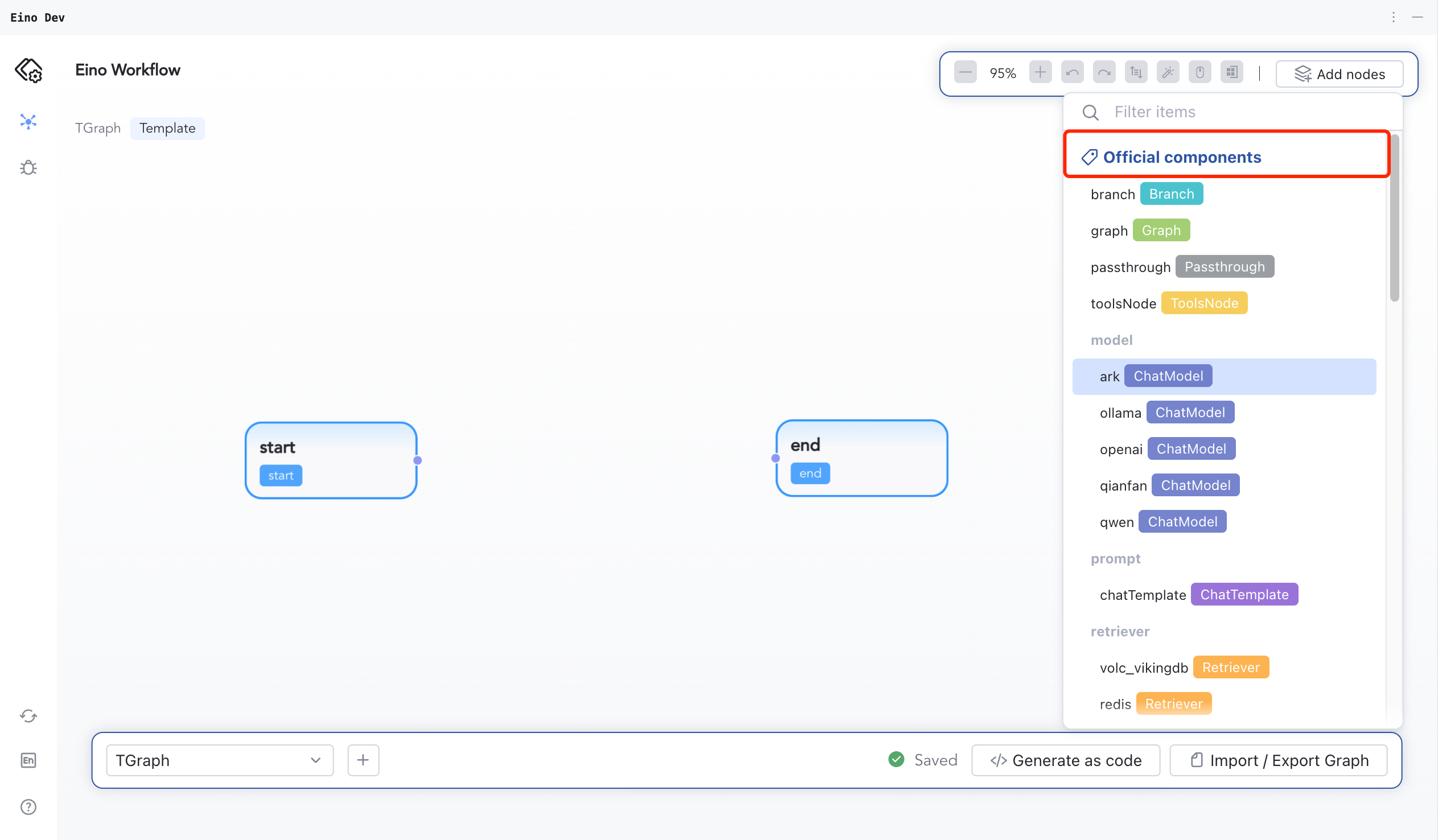
Components define node behavior. Official components and custom components are supported.
Configure runtime settings after adding a node.
Slot
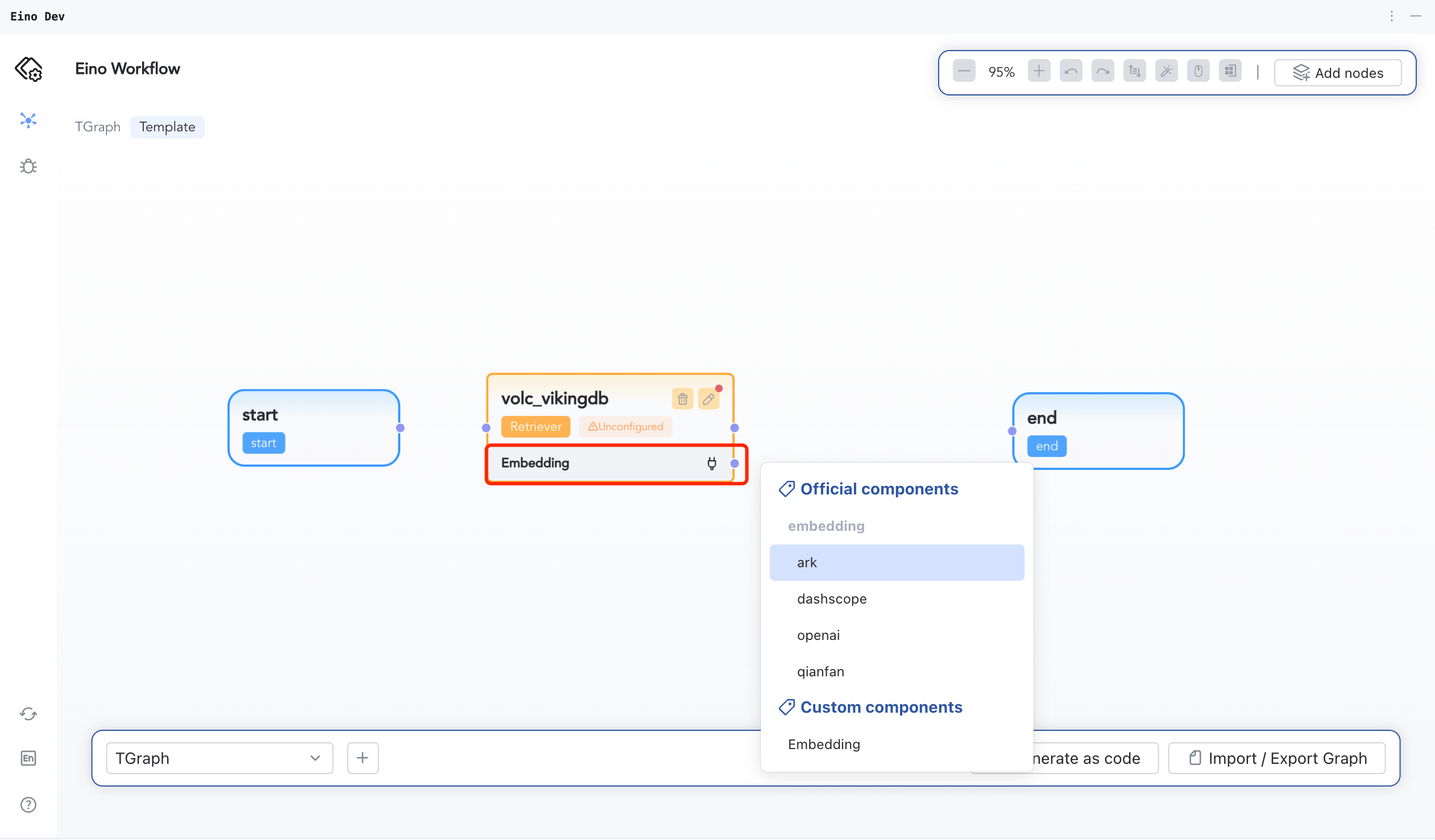
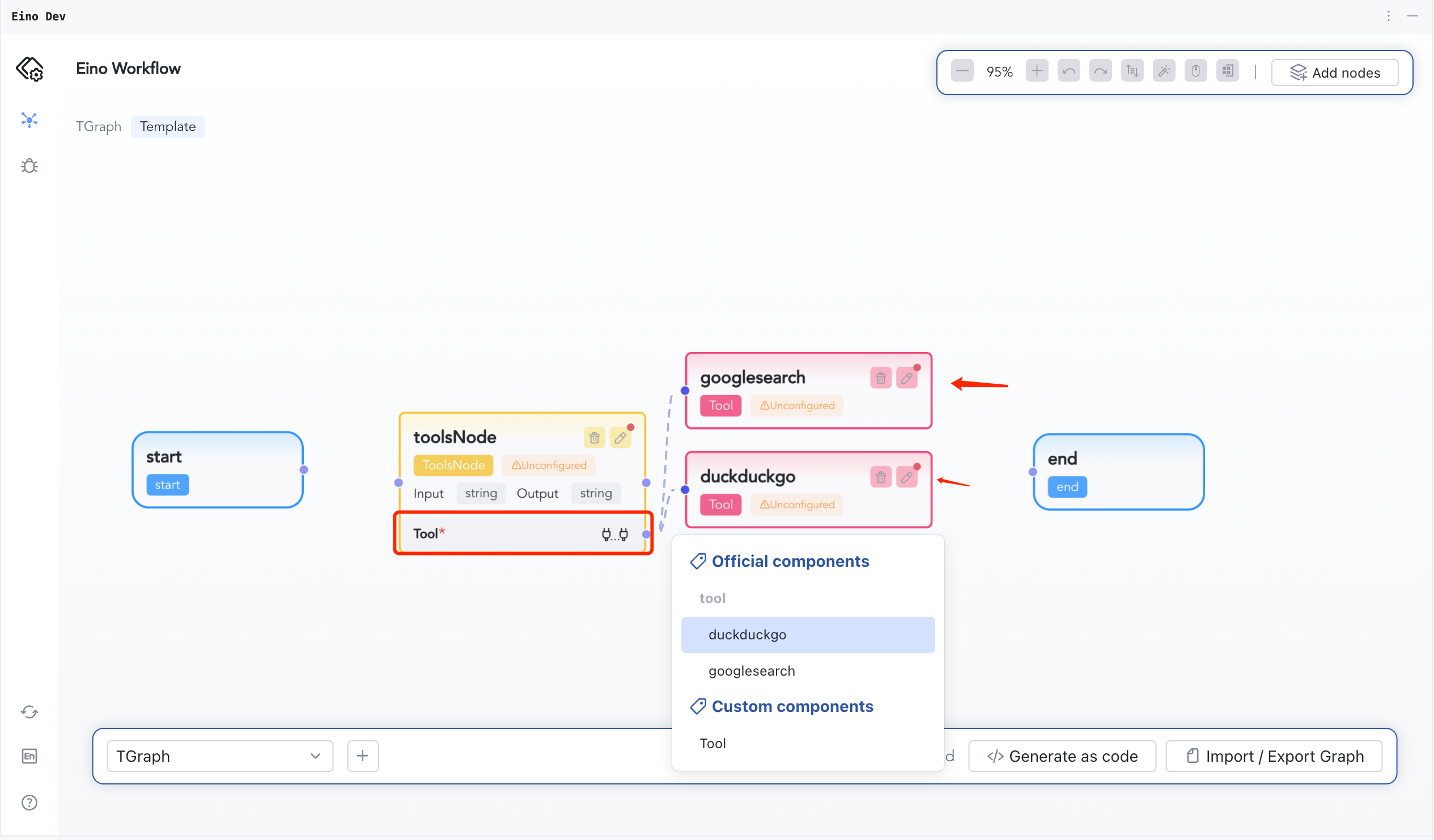
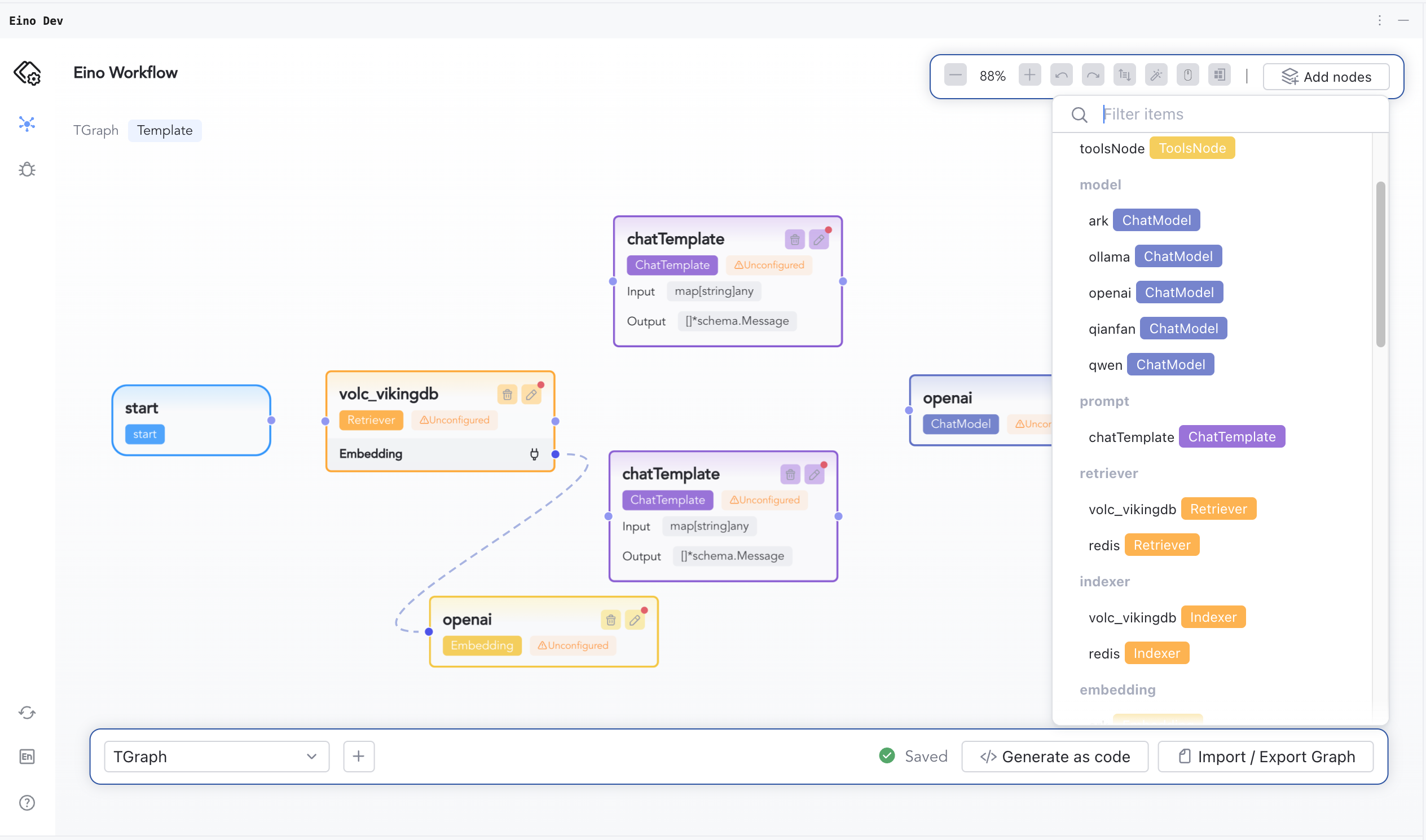
Some components depend on other components — these dependencies are called slots.
For example, volc_vikingDB depends on an Embedding component; ToolsNode depends on multiple Tool components.
Start Orchestrating
Initialize the Plugin
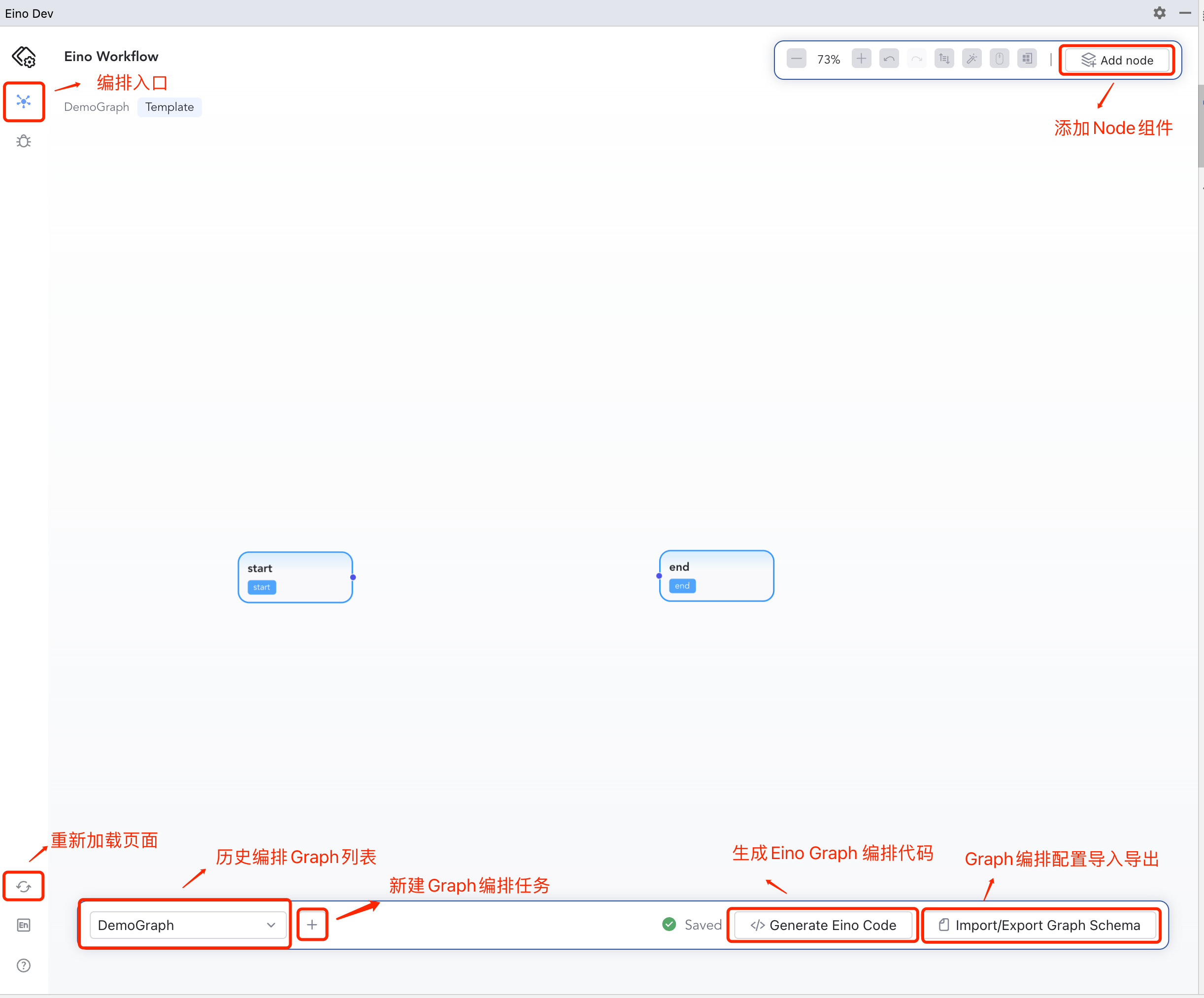
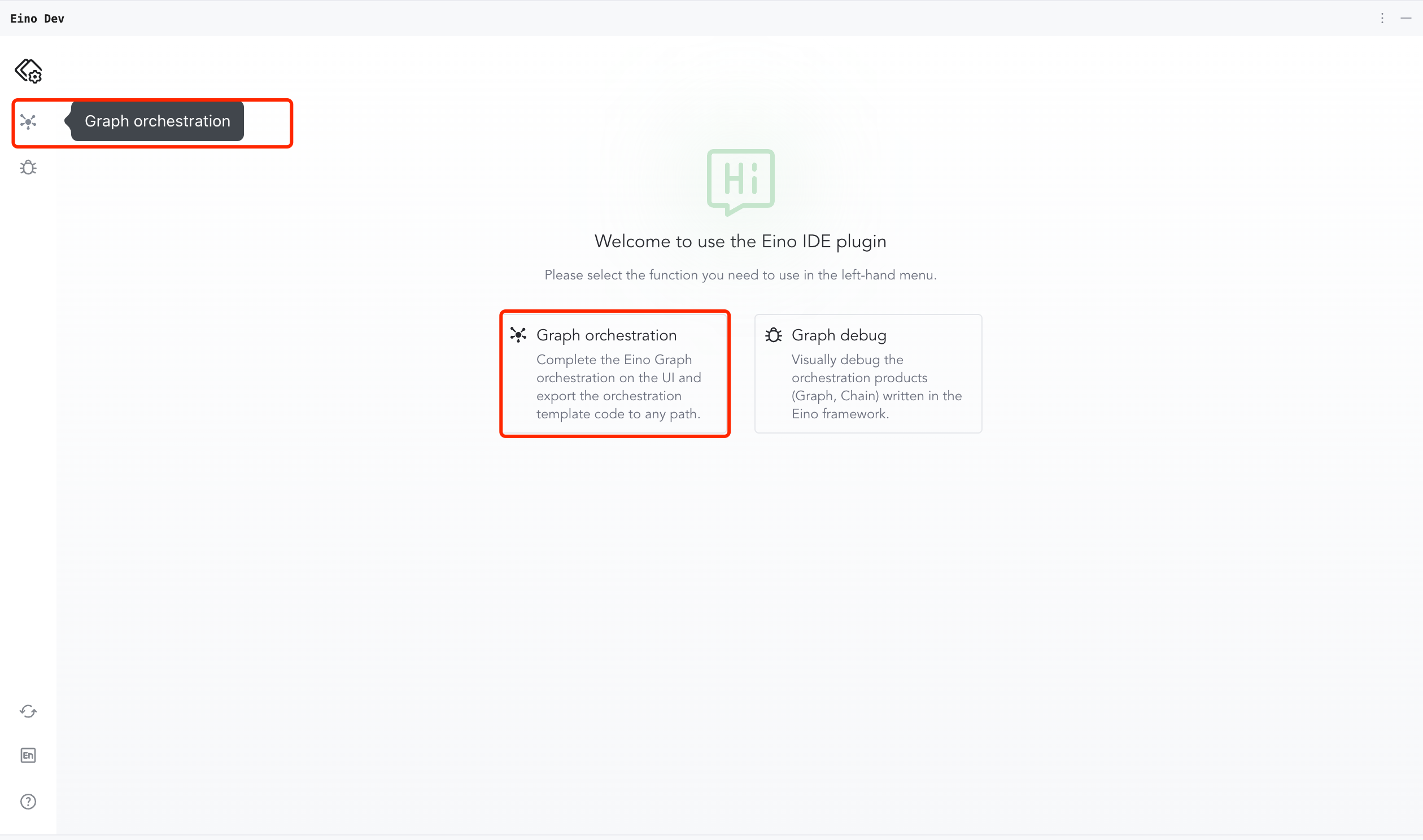
Open Eino Dev and click into orchestration.
Create and Orchestrate a Graph
Add a Graph via the bottom-left control; fill the dialog to create the canvas.
Use “AddNodes” to add nodes as needed.
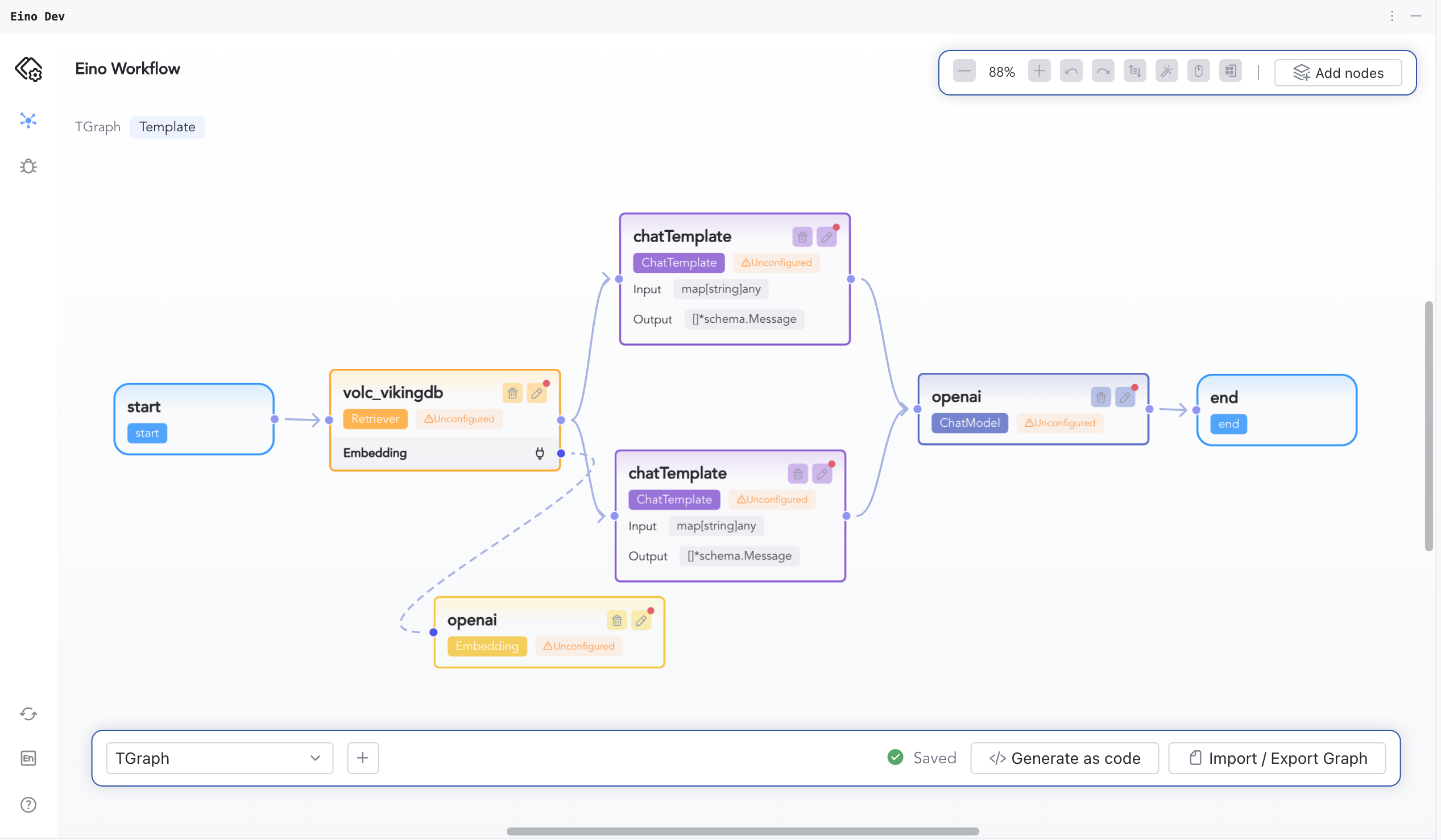
Connect nodes according to business logic.
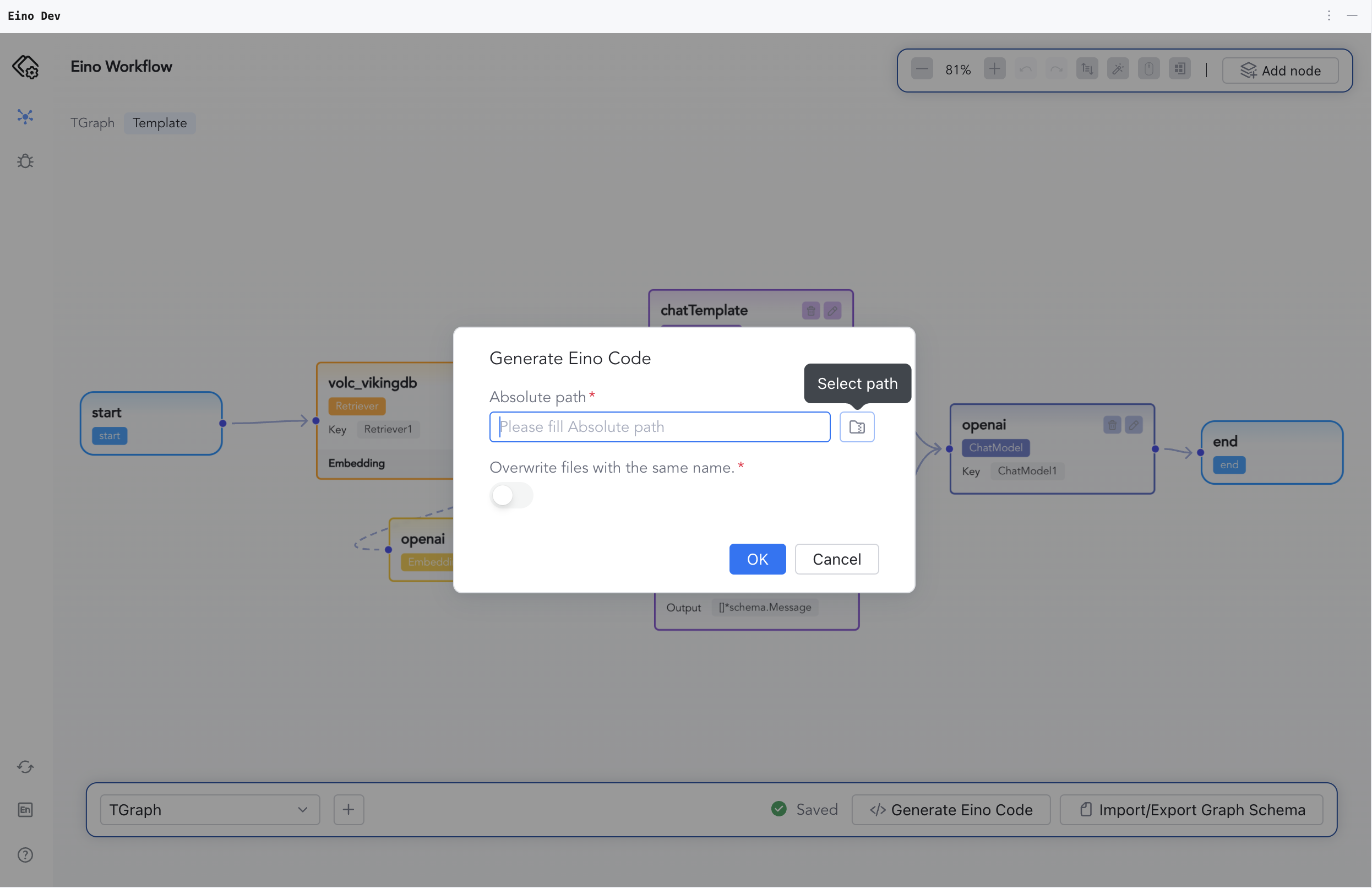
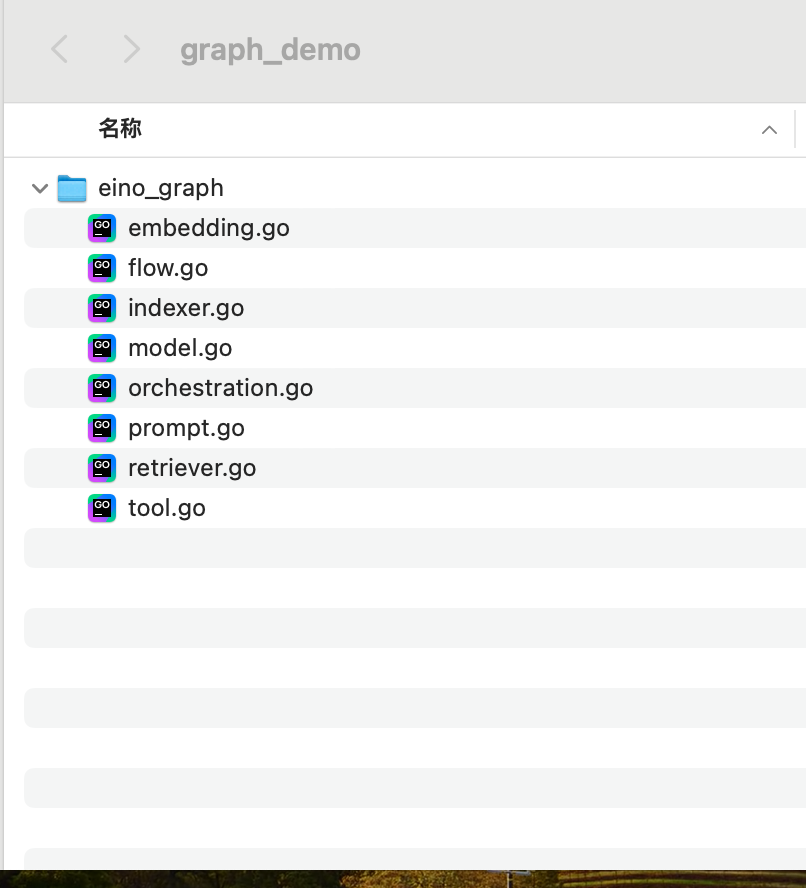
Click “Generate as code”, choose a folder, and save the generated Graph code.
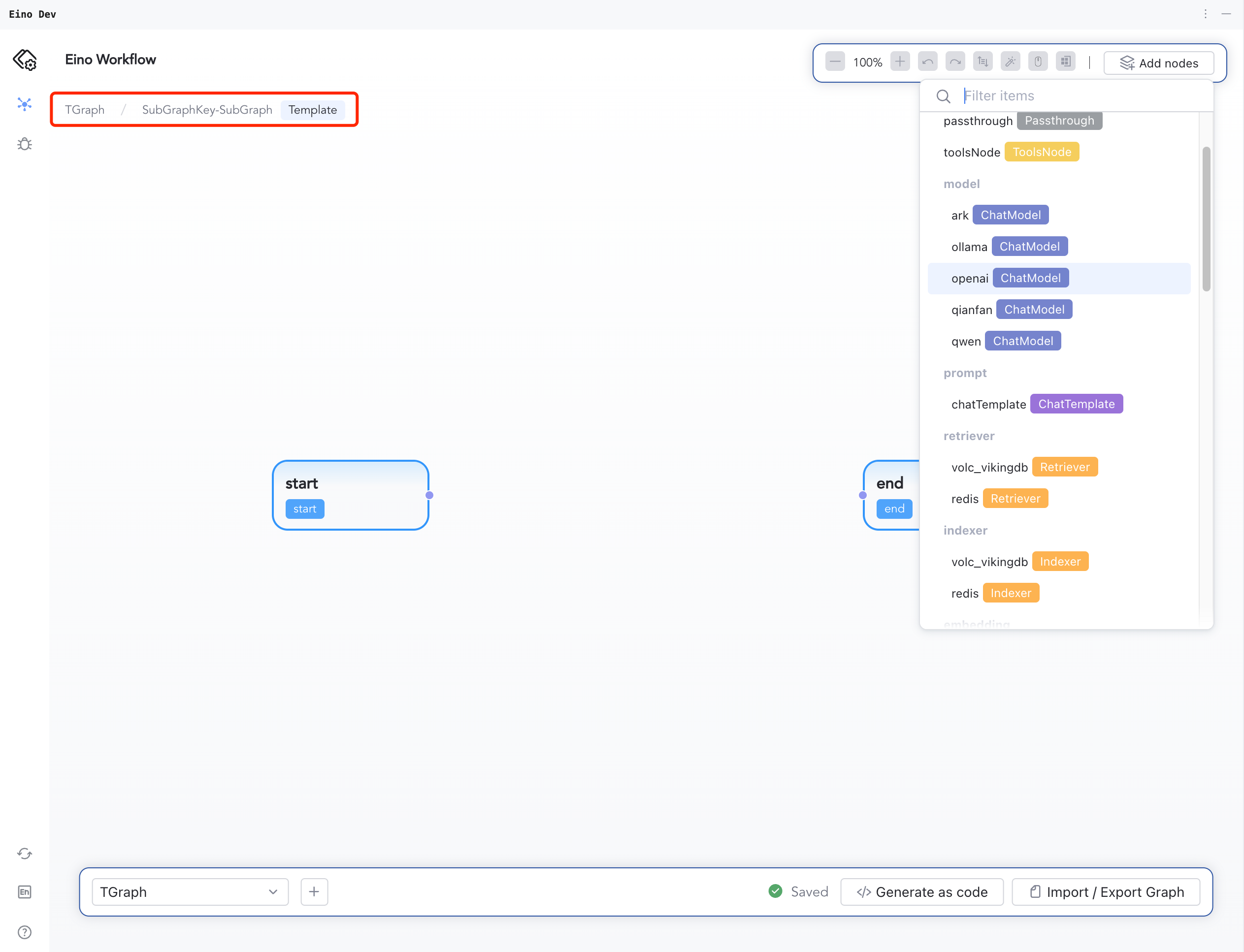
When adding a Graph component as a node, expand the nested Graph to configure its nodes; use the breadcrumb to return to the top-level after configuration.